Check your Claude limits from your phone
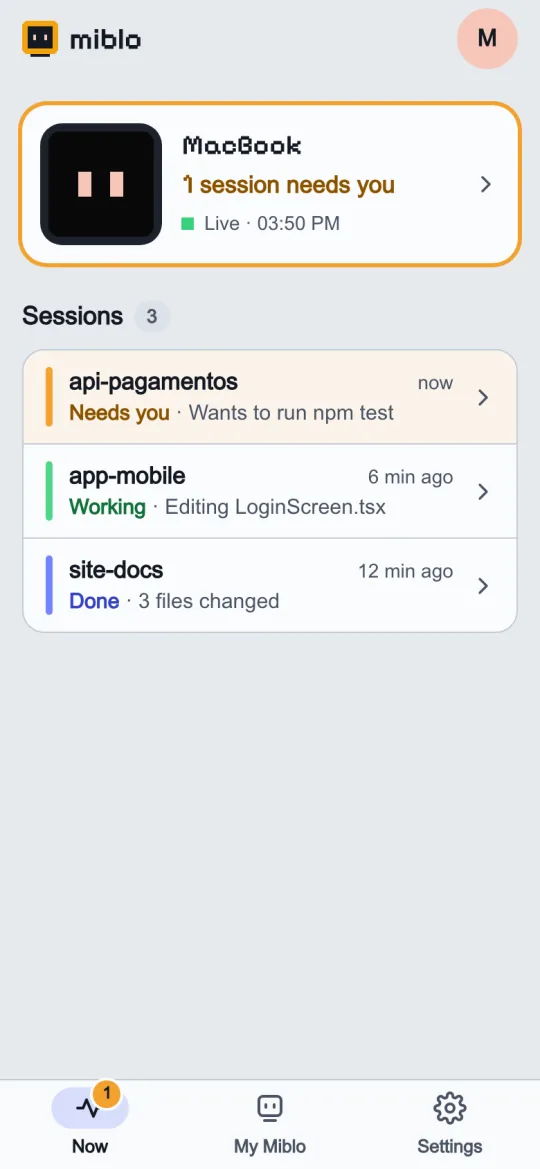
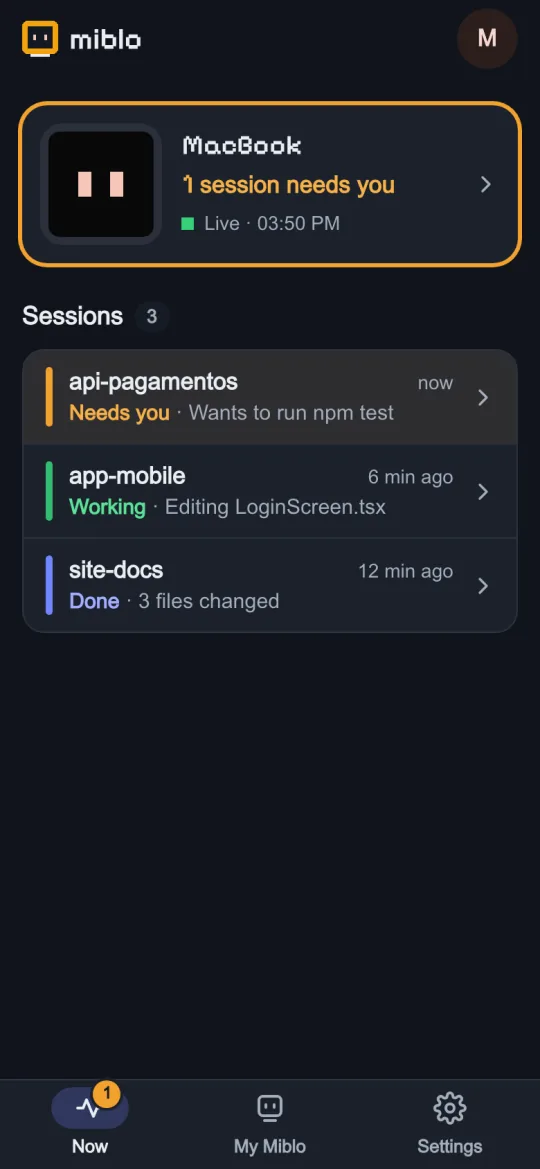
Your phone shows what Miblo's screen shows: your sessions, the alerts and Claude Code's 5-hour and weekly limits. It's free, with a Miblo account, and needs no gadget.
FreeFree, with a Miblo account. No Miblo+ needed.
How to see your limits on your phone
Install Miblo on your computer
Download the Miblo app (Mac, Windows or Linux) on the computer your AI runs on, sign in with your Miblo account and turn Phone on.
Sign in on your phone
On your phone, open miblo.ai/app, sign in to the same account and create the app PIN. The computer shows a 6-digit code: type it on the phone and confirm with its passkey (Face ID, Touch ID, fingerprint or PIN).
Add it to your home screen
Add the page to your home screen (on iPhone: Share, Add to Home Screen) and allow notifications.
See your limits
The 5-hour and weekly limits show on your phone after Claude Code's next reply, next to your sessions.
Good to know
- Claude Code's limits come from its status line, on the Pro and Max plans. Your status line stays the same.
- Codex's limits come from Codex's own session files, when you sign in with a ChatGPT plan.
- Copilot CLI, Gemini CLI, OpenCode and Cursor do not report usage limits: Miblo shows their sessions and alerts.
- No limits showing? Run /miblo:status to check that the status line is linked; if it isn't, run /miblo:link-statusline.
- Everything is end-to-end encrypted; the server keeps only the last status frame, encrypted, for 10 minutes, with no IP address.
Works with