Approve Claude Code permissions from your phone
When Claude Code asks for permission to run a command or edit a file, the request reaches your phone with the exact command. Approve it with Face ID, Touch ID, fingerprint or PIN, or deny it, from wherever you are.
Miblo+Needs Miblo+, from R$9.90 a month.
How to approve from your phone
Install Miblo on your computer
Download the Miblo app (Mac, Windows or Linux) on the computer your AI runs on, sign in with your Miblo account and turn Phone on.
Sign in on your phone
On your phone, open miblo.ai/app, sign in to the same account and create the app PIN. The computer shows a 6-digit code: type it on the phone and confirm with its passkey (Face ID, Touch ID, fingerprint or PIN).
Turn approvals on
With Miblo+, turn approvals on in the Miblo app on your computer (or with miblo plus approvals on). The computer shows a 6-digit code: type it on your phone and confirm with its passkey.
Approve or deny the request
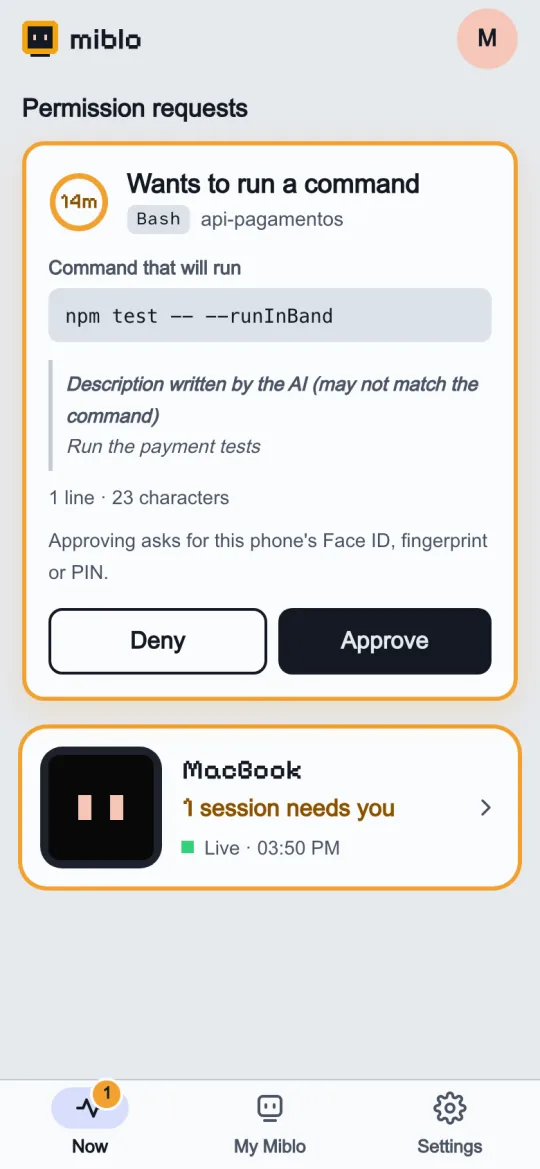
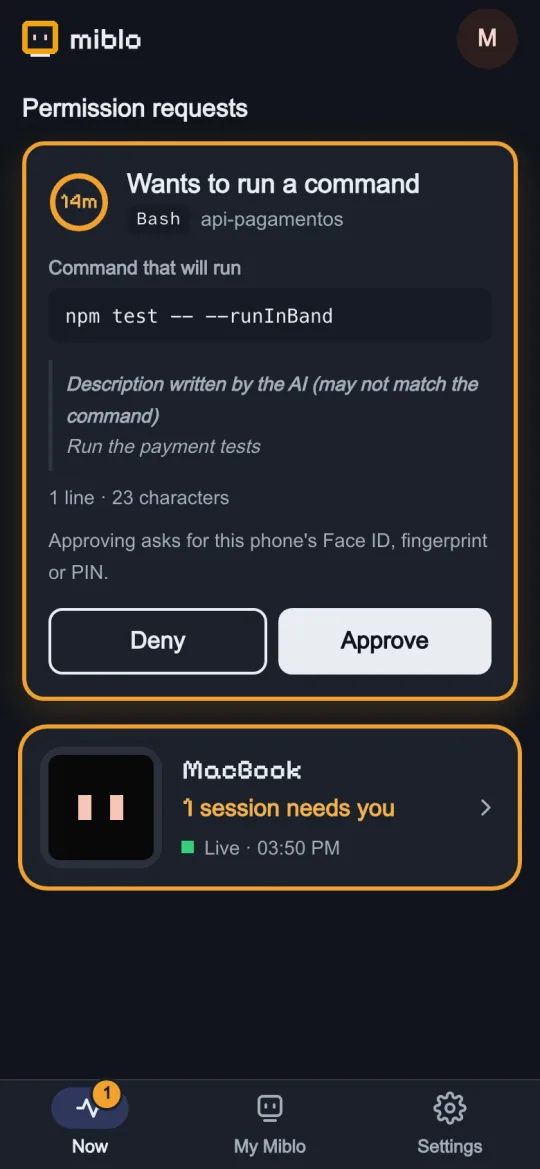
When Claude Code asks for permission, open the request on your phone, read it to the end and tap Approve twice; confirm with Face ID, Touch ID, fingerprint or PIN. Deny takes two taps and no passkey.
Good to know
- It works for Codex and OpenCode too, always with the prompts the tool itself shows. Copilot CLI, Gemini CLI and Cursor keep their own flow.
- The request goes to your phone when one of your phones has the Miblo app connected; otherwise Claude Code asks on the computer as usual.
- It waits for your phone from 15 seconds to 1 hour (you choose in the Miblo app or with miblo plus timeout). With no answer, Claude Code asks on the computer. Nothing is ever approved by itself.
- The card shows the whole command, every line break and every invisible character made visible, and a file edit's path and diff. A request with hidden characters can only be denied from the phone.
- Every request, the phone that answered and the outcome are kept in your computer's log (miblo plus audit).
Works with