Miblo+
New: session files and voice messages
Approve, reply and see what your AI did, from your phone.
Follow Claude Code, Codex and the other AI tools on your computer from wherever you are: approve commands, reply by text or by voice and open the files the session made. End-to-end encrypted.
From R$9.90/month or R$99.00/year on the yearly plan
- End-to-end encrypted: the Miblo server only passes it along.
- Cancel anytime, no fees
- Works without Miblo Desk
New
The session's files, on your phone
Open what the AI wrote or edited and what a script produced in the session's folder. Read only, each kind shown the right way.
- Changes in color
- Highlighted code
- Rendered Markdown
- CSV as a table
- JSON as a tree
- HTML: source and safe preview
- Images
- Video and audio
- End-to-end encrypted to your phone.
- Secrets in text files, such as keys and passwords, show up hidden.
- Off by default: you turn it on at the computer and confirm on your phone with its passkey.
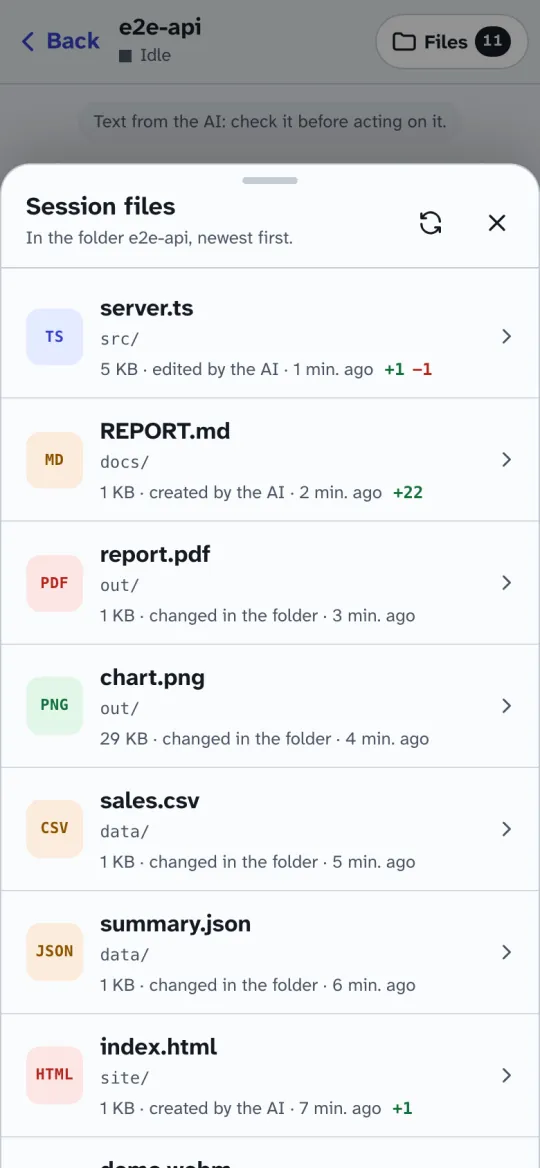
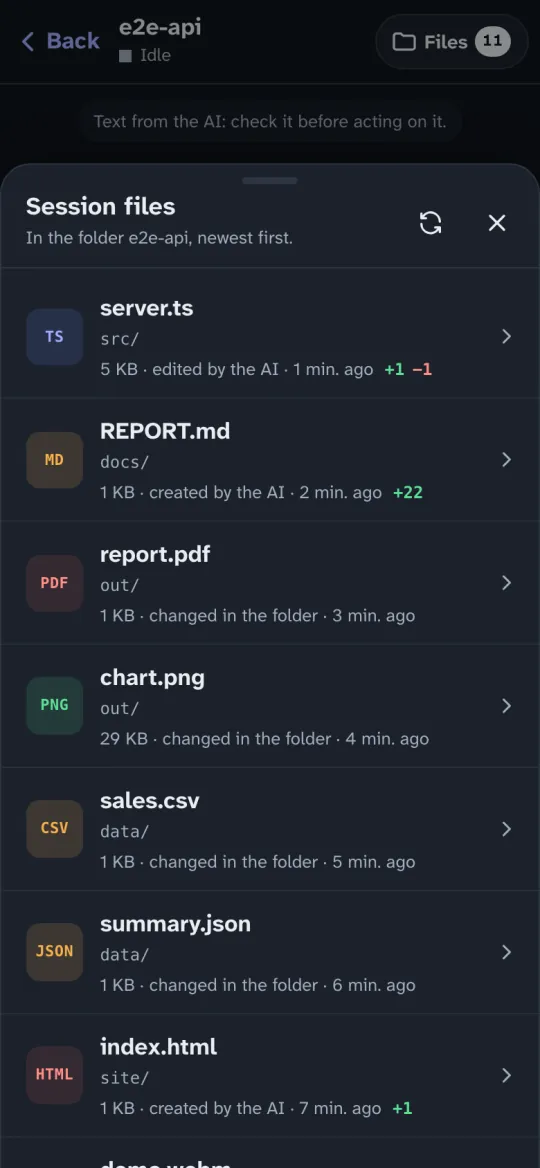
The files that changed in the session, newest first.
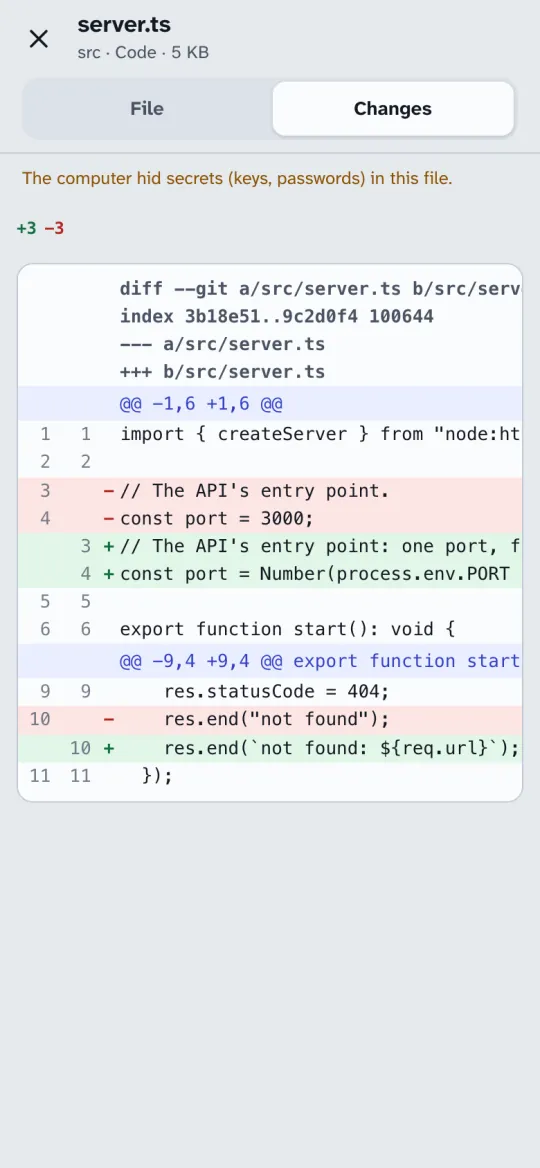
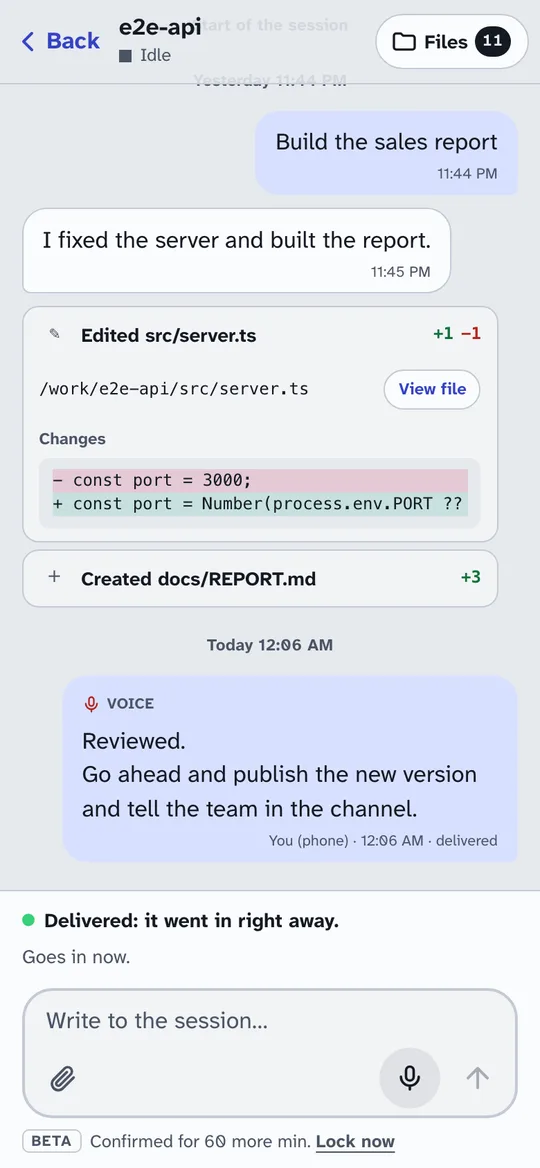
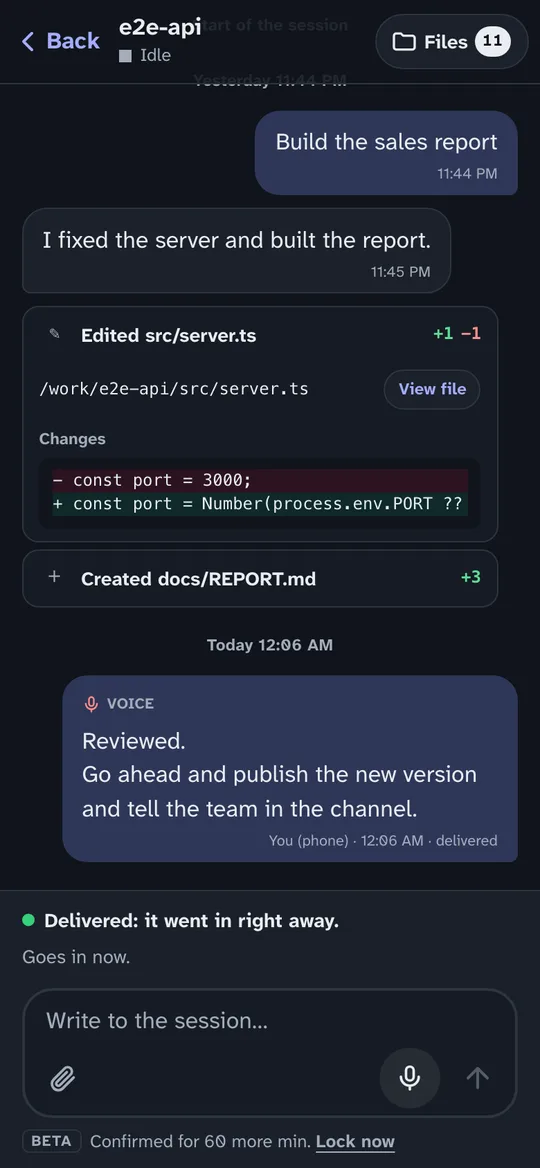
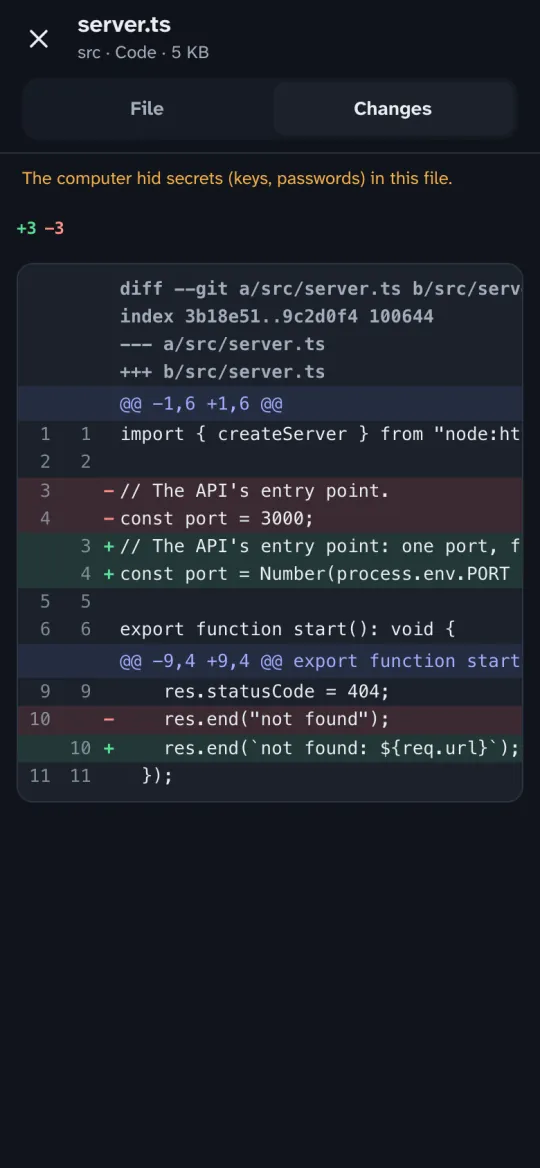
What changed, in color. Secrets stay hidden.
New
Talk instead of typing
Record a message on your phone and tap send. Your computer transcribes it and the text goes straight to the AI, as if you had typed it.
- Transcription happens on your computer, with whisper.cpp: the audio doesn't go to the cloud and no API key is needed.
- No review step: what was heard goes into the session as transcribed, and the conversation shows the text that went in. A transcription mistake goes in as heard; if you would rather type, turn voice off in Miblo Hub.
- If nothing is heard in the audio, nothing is sent: the message shows why, with Try again or Discard.
- Works with every AI tool that takes replies from your phone: Claude Code, Codex, OpenCode, Copilot CLI, Gemini CLI, Cursor, Qwen Code and Antigravity.
- The audio is deleted from your computer 1 hour after it is transcribed.
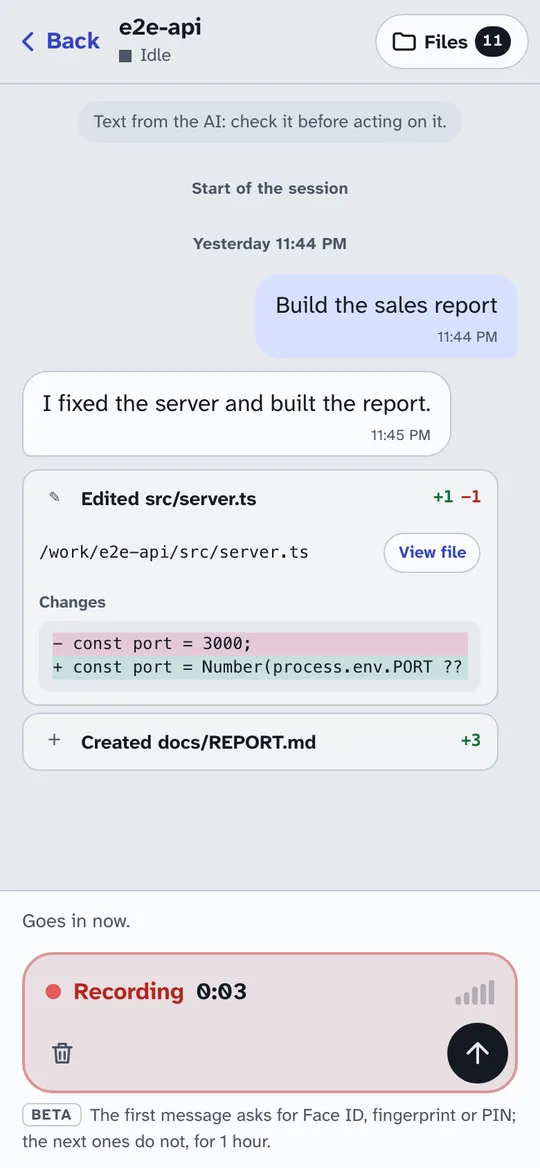
Record right in the session's conversation.
Transcribed on your computer, straight to the AI.
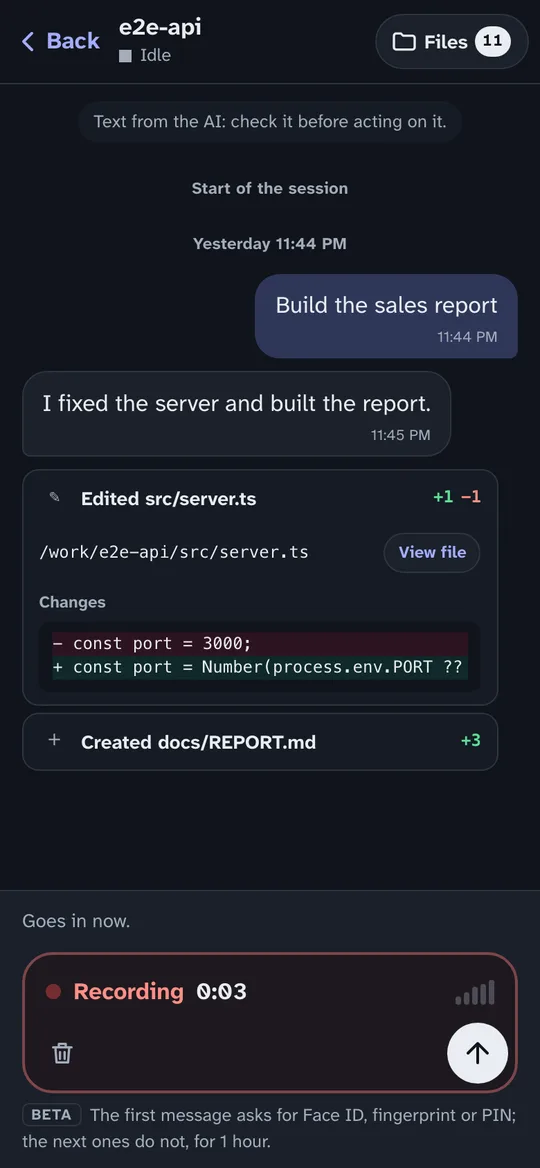
And everything Miblo+ already does
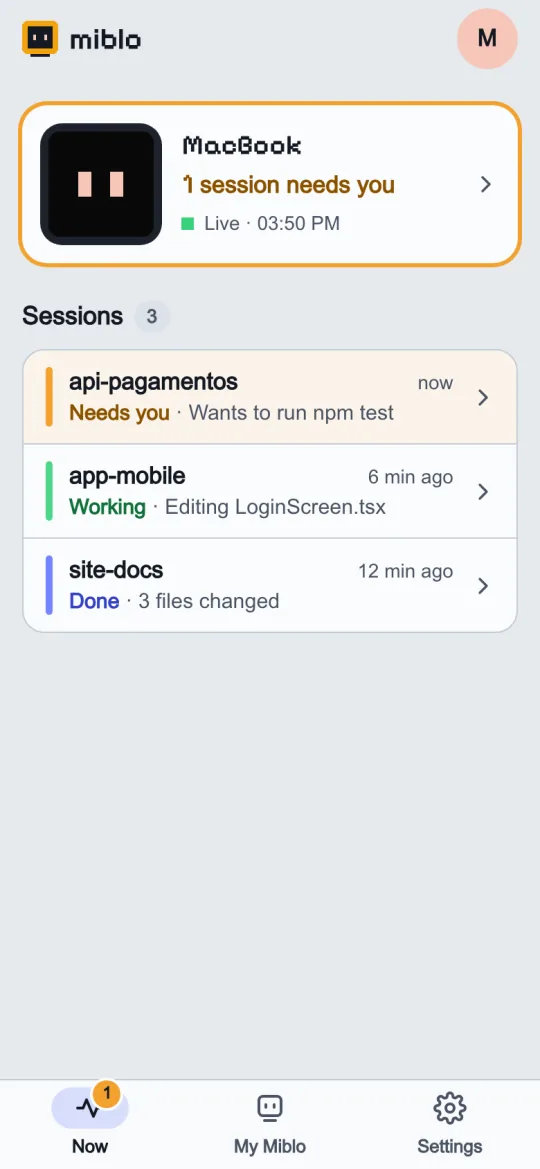
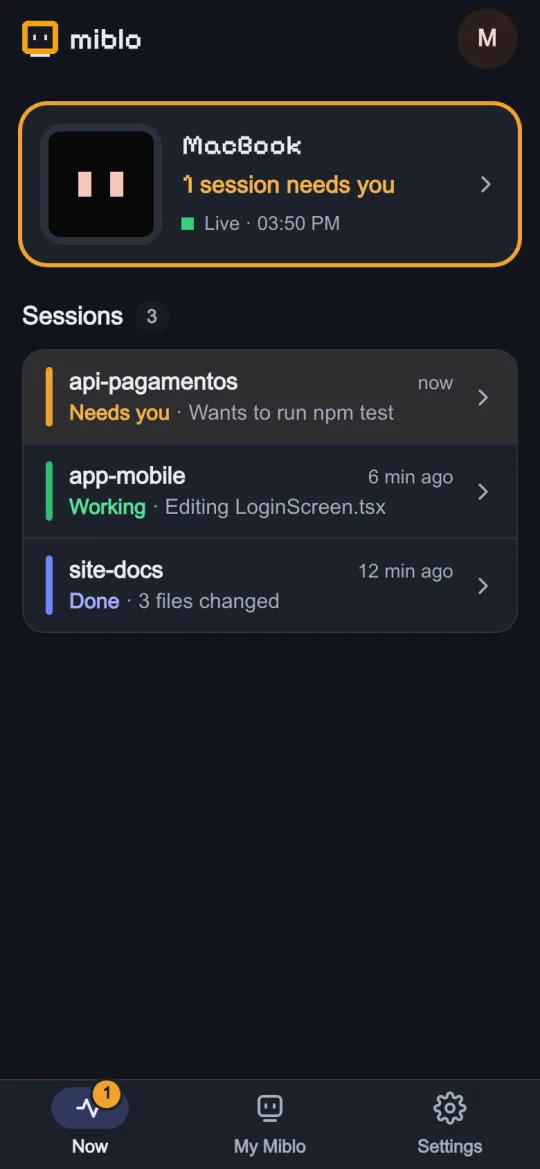
Your sessions live, with a heads-up when one needs you.
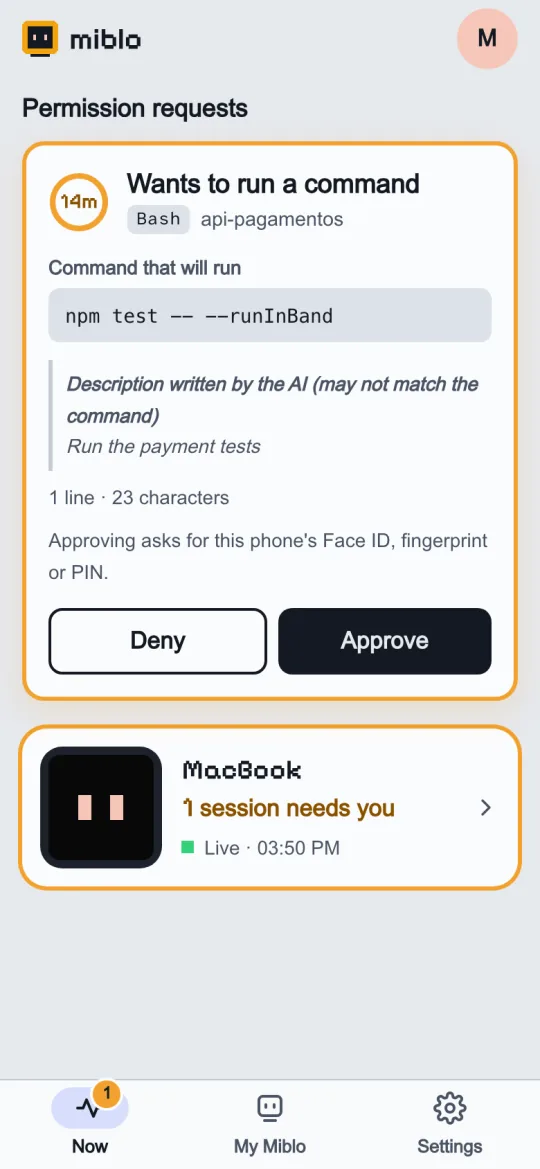
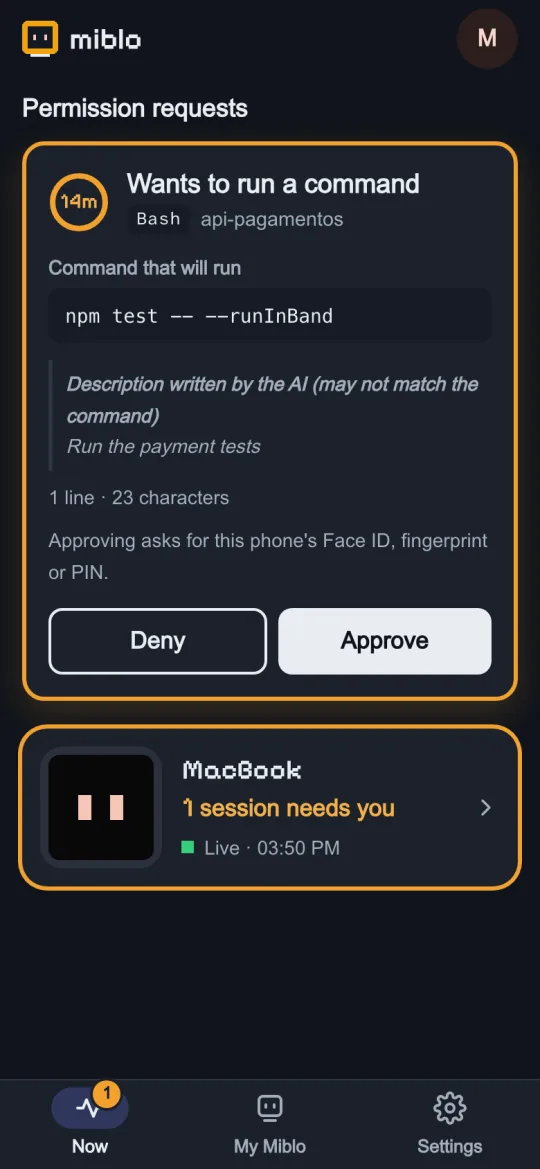
Approve or deny the exact command, with Face ID, fingerprint or PIN. You decide.
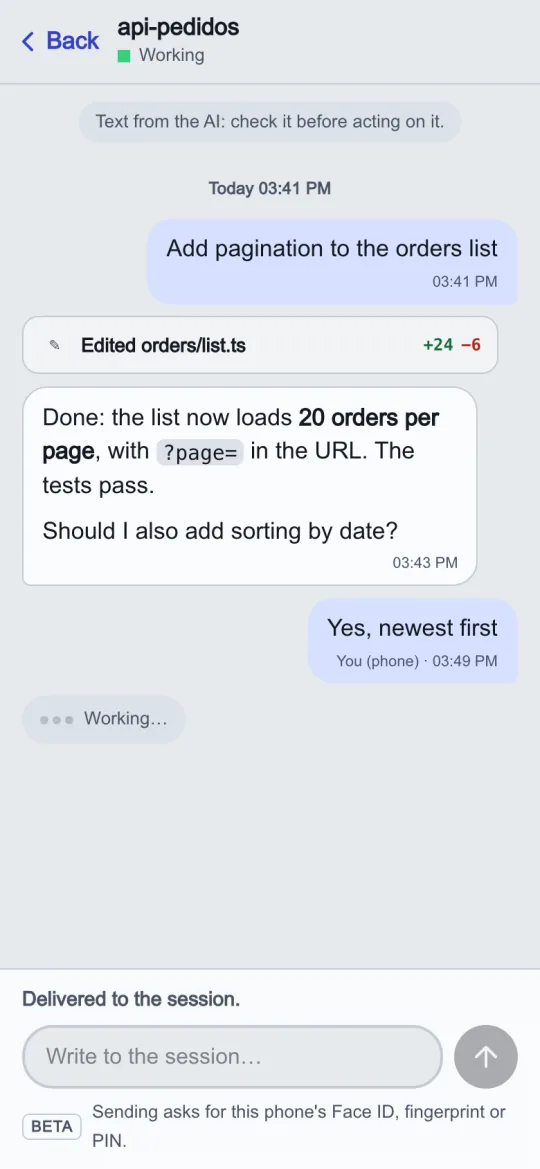
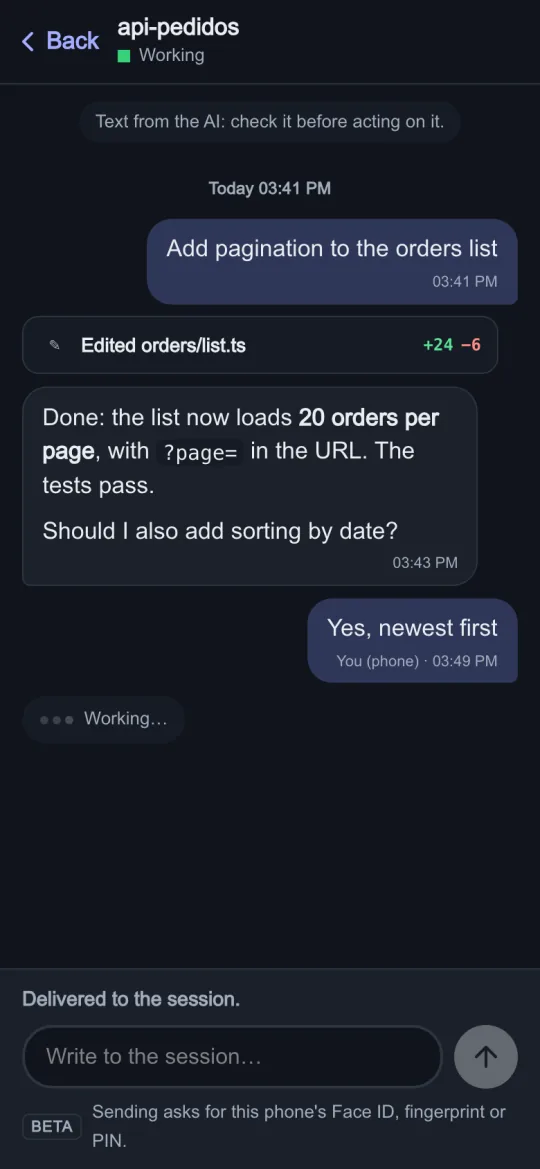
Read the conversation and reply. Your reply reaches the session.
Reply from anywhere
In every AI tool Miblo shows. While a session works, your reply goes in when it finishes its turn; when it's idle, it wakes up and answers (Claude Code, Codex and OpenCode).
Approve what the AI asks
In Claude Code, Codex and OpenCode, permission requests reach your phone with the exact command. Approving asks for Face ID, fingerprint or PIN.
Conversation history
The last 50 messages of each session, straight from your computer and end-to-end encrypted.
Tasks from your phone
Ask your computer's AI for a new task and follow it as a conversation, with a Stop button. A Claude Code task goes on when you reply and opens in your terminal where it stopped.
Everything shows on the computer
Every reply shows on your computer, in a notification naming the phone, and is kept in Miblo's audit log.
Works without Miblo Desk
Miblo Hub on your computer and Miblo Remote on your phone are enough. With a Miblo on your desk you get the screen next to your keyboard, the pet at your desk and visits between Miblos.
Your code stays yours
Miblo+ brings the session to your phone without opening anything to anyone along the way.
End to end
Messages, files and audio travel encrypted between your computer and your phone. The Miblo server only passes them along and stores nothing.
Voice transcribed at home
The audio is transcribed on your computer. No cloud service, no API key.
A passkey to approve
Approving asks for Face ID, fingerprint or PIN, and your computer checks it before accepting. On the Practical level one Face ID lasts up to 8 hours; on Maximum every action asks.
You choose what's on
Approvals, replies and files start off and are turned on at the computer. Files also ask for a confirmation on your phone.
Pick your plan
Miblo+ Pro
14 days freeR$39.90/monthR$399.00/year
Everything in Plus, plus the autopilot (when one AI runs out of limit another one carries on, and the first comes back when its limit resets) and plans with tasks on a board.
Every new account gets 14 days of Pro when it links its first computer. No card, no charge.
With yearly Pro, the Miblo Desk is R$49.90 more (plus shipping).
- Secure payment by Pagar.me
- Cancel anytime, no fees
- Works with the Miblo you already have
You sign in with your email. No account yet? It's created on the spot.
What each plan includes
| Free | Plus | Pro | |
|---|---|---|---|
| Live status and limits on your phone | Yes | Yes | Yes |
| “Needs you” alert on your phone | Yes | Yes | Yes |
| Last 50 AI messages, end-to-end encrypted | No | Yes | Yes |
| Reply to the AI from your phone | No | Yes | Yes |
| Approve or deny permissions from your phone | No | Yes | Yes |
| Session files on your phone, end-to-end encrypted | No | Yes | Yes |
| Voice messages, transcribed on your computer | No | Yes | Yes |
| Works away from home, on any network | Yes | Yes | Yes |
| Tasks started from your phone, at the same time | No | Up to 5 | Unlimited |
| Devices (phones and computers) | 1 + 1 | Up to 5 | Up to 5 |
| Autopilot: when one AI runs out of limit, another carries on the work | No | No | Yes |
| Plans with tasks on a board | No | No | Yes |
With each AI tool
Live status is free with all of them. Approvals and replies come with Miblo+.
Claude Code · Codex · OpenCode
- Live status
- Yes
- Approvals
- Yes
- Replies
- Yes, working or idle: an idle session wakes up and answers
Kimi Code · Qwen Code
- Live status
- Yes
- Approvals
- Yes
- Replies
- Yes, when the session finishes its turn
Gemini CLI · GitHub Copilot CLI · Cursor · Antigravity
- Live status
- Yes
- Approvals
- No: the tool's own flow applies
- Replies
- Yes, when the session finishes its turn
- A reply sent while the session works goes in when it finishes its turn.
- Approvals exist only where the tool itself asks: Miblo relays its request and never asks for anything it wouldn't.
- Idle Copilot CLI, Gemini CLI, Cursor, Qwen Code and Antigravity sessions running inside tmux or GNU screen get replies right away too: Miblo types the reply into the session's terminal after checking it's the right one.
- For safety, replies only go into sessions that still ask before acting. For sessions in an automatic mode, and for OpenCode, Copilot CLI, Gemini CLI, Cursor and Antigravity (which don't report their mode), turn replies on for those cases at the computer (miblo plus replies permissive on).
Remote control from your phone: approve, reply and check your limits
Miblo+ compared to each AI's own remote access (Claude Code, Codex, Copilot CLI and more)
How it works
Install it on your computer
Download Miblo Hub (Mac, Windows or Linux) and sign in to it with your Miblo account.
Sign in on your phone
Open Miblo Remote (miblo.ai/app) on your phone and sign in to the same account. You can add it to your home screen.
Type the code your computer shows
Miblo Hub on your computer shows a 6-digit code for the new phone. Type it on the phone and you're done. Approvals and replies start off: turn them on at the computer when you want them.
Questions
Can the Miblo server read my conversations?
No. Messages, files and audio travel end-to-end encrypted between your computer and your phone, and only they have the key. The server just passes them along and stores nothing: no messages, no history. The last 50 messages come straight from your computer when your phone opens.
Which files can my phone open?
The ones the AI wrote or edited in the session and the ones that changed in the session's folder since it started, such as what a script produced. Your phone shows changes in color, highlighted code, rendered Markdown, CSV as a table, JSON as a tree, HTML (source and a safe preview), images, PDFs, video and audio, all read only. Sensitive files such as .env and private keys never show up, and secrets inside text files are hidden.
How do I turn files on?
They start off. Turn them on at your computer, in Miblo Hub or with miblo plus files on, and confirm on a phone you already use: type the code your computer shows and confirm with its passkey. Turning them off is instant and asks for nothing.
Where does the audio of a voice message go?
To your computer, end-to-end encrypted. It is transcribed right there, with whisper.cpp, with no cloud and no API key, and the text goes straight into the AI session, as your message. A transcription mistake goes in as heard; if you would rather type, you can turn voice off in Miblo Hub. The audio is deleted 1 hour after it is transcribed.
What do I need for voice messages?
Nothing to install by hand. When you turn on phone access, Miblo Hub tells you and, once you confirm, installs the transcription on your computer: the engine and the speech model, about 600 MB, all local. Then just record on your phone.
Do I need Miblo Desk?
No. Miblo+ works with just Miblo Hub on your computer and Miblo Remote on your phone. Miblo Desk adds the screen on your desk, next to the keyboard, the pet at your desk and visits between Miblos on the same network.
Is it safe to let my phone approve commands?
Approving and replying asks for your phone's Face ID, fingerprint or PIN, and your computer checks every request before accepting it. You pick the level in Miblo Hub: on Practical (the default), one Face ID covers replies and allowing once for up to 8 hours, while "always allow" and autopilot ask every time; on Maximum every action asks. Approvals only show when the AI tool itself asks. Everything is end-to-end encrypted and the Miblo server only passes it along.
Do I need to start Claude Code in a special way to reply?
No. Since Miblo 1.24, replies go in through Claude Code itself, with no channel to accept and no new window. Sessions opened before the update keep the old way, Claude Code channels: they work on Pro and Max accounts, but on Team and Enterprise accounts the organization may have them off. Close and reopen those sessions to use the new way.
Does it work away from home?
Yes, on any network: 4G, 5G, the café's or the office's Wi-Fi. Your computer must be on with Miblo running.
Can I cancel anytime?
Yes, with one click in your account. No fees: you keep Miblo+ until the end of the period you paid for, then go back to the free plan.
What if a renewal payment fails?
You keep Miblo+ for 3 more days and get an email to update your card. After that your account goes back to the free plan, keeping everything the free plan does.
How does Pix work?
Pix is for the annual plan: pay once, get 12 months. It doesn't renew by itself; we email you 7 days and 1 day before it ends. Renew early and the time left is added.
Do I need Miblo+ to use Miblo?
No. Miblo and Miblo Remote keep working on the free plan, with live status, limits and the “needs you” alert.
Take your Miblo with you
Approve, reply by text or voice and see the session's files from wherever you are. Cancel anytime.